
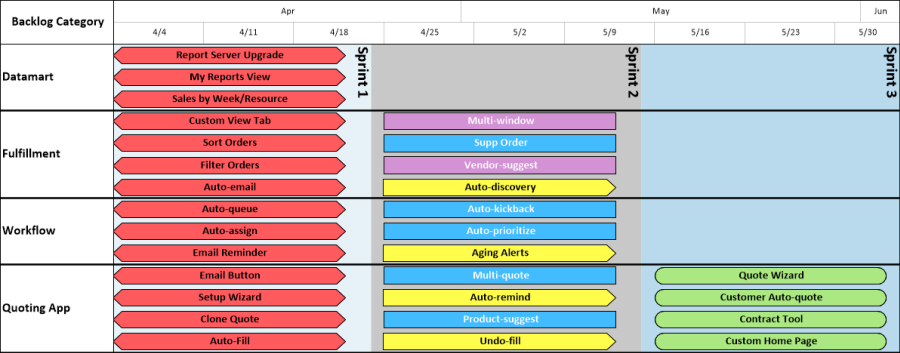
Creating an Agile task board, or a product roadmap, is a good way to sort your product backlog list into sprints, and OnePager Express will create these task boards quickly and easily, using the backlog you are already storing in Excel. OnePager Express is a Microsoft Excel add-in, so you can launch it directly from Excel without having to export or convert your data. Download a free trial to start building your own agile task boards and then follow either our simple or our more detailed instructions:
Simple Instructions
These instructions are designed for people don't already have a task list in Excel. You can use our example Excel task list as a starting point and follow these abbreviated steps to create your task board in just a few clicks.
-
Start by downloading these two sample files to your downloads folder or to your desktop. The Excel file contains the task list, and the *.tat file is the OnePager template that will drive the formatting of the agile task board that you're about to create.
 Agile Task Board.xlsx (Excel File)
 Agile Task Board - Excel.tat (OnePager Template)
-
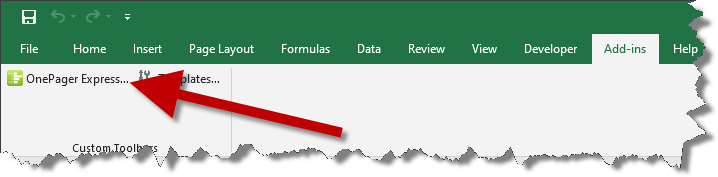
Open the Excel file that you just downloaded, and click Enable Editing at the top if prompted. From Excel's Add-Ins tab, click the OnePager Express button:
-
On the Start screen, click NEW to start building a new task board:

-
On the next screen, locate the Starting Template section, and go to Change > BROWSE FILES. Browse to your desktop or downloads folder and select the Agile Task Board - Excel.tat template that you downloaded in step #1:

-
With your Excel file loaded and your OnePager template selected, click Next, and then on the following screen, click Create new chart. OnePager will import the task data from your Excel file and create an agile task board in just a few seconds:

Now that you've done this, you can go back to Excel and adjust the spreadsheet to match the dates and user stories from your real-world sprints. Then, you can follow the same steps again with your updated Excel sheet.
15-Day
Free Trial
Detailed Instructions
These instructions are designed for people who have already built a task list in Excel and just need to import what they already have into OnePager to create a task board. These instructions also provide more details about the different ways to format your agile task board.
-
Open your backlog list in Excel:

Your spreadsheet doesn't need to match this layout exactly, but it's a good idea if you have fields to track the task name, start and finish dates, and some type of unique identifier (column A) for each task in your backlog.
-
Click the OnePager Express button, which appears on Excel's Add-Ins tab. From the Start screen, choose New.
-
Give your task board a name and status date. We've also decided to filter the tasks from Excel so that only those tagged with Task Board will be included in the chart. If your task list is smaller, you can simply import everything instead. When you're ready, click Next >:

-
Now, tell OnePager Express which Excel columns you want to import for the task board, and then click Create new chart.

-
OnePager Express will import your backlog from Excel and begin to create a product roadmap, but we'll want to make a few quick modifications.
-
Go to Home > Chart Properties. On the Task Bars tab, find the Task Bar Label Properties setting, and change the properties so that the text is centered:

-
Go to the Rows/Swimlanes tab and change the Task Layout option toward the top of the menu Timeline (multiple tasks per row) to "Backlog Category" to group your items into a common row, based on the Backlog Category values. Also, make sure that the Stagger overlapping tasks box is checked so that each task in a given sprint will be shown in its own row.
Next, in the Swimlanes section select "Backlog Category" in the dropdown to have your tasks visually grouped into swimlanes by Backlog Category values.

-
Press OK. Your task board should now look like this:

-
Since the task board is already grouping by the backlog category, maybe we want to assign colors based on the task status instead. To do this, go to Home > Chart Properties > Task Bars and change the color assignments to look at the Status field:

-
Click OK, and the task board should now look like this:

-
If you want to label each of your sprints, go to Insert > Curtain and define the name and dates for each of your sprints:

-
Repeat this for each sprint in your task board, and your final chart will look like this:

That's it! You've now used OnePager Express to create a task board or agile product roadmap using the backlog list you have in Microsoft Excel.
Customizable
If you'd like to customize your OnePager Express agile task board before sharing it in a daily standup, it's very easy to do:
- Change colors, symbols, fonts and layouts
- Show original sprint dates or percent complete
- Add comment boxes, text boxes, or images to your task board
Best of all, OnePager will save you hours of time and frustration every week, and saves you the hassle of updating your roadmap presentation each time your backlog changes.
Get started today by downloading a free trial
15-DayFree Trial